



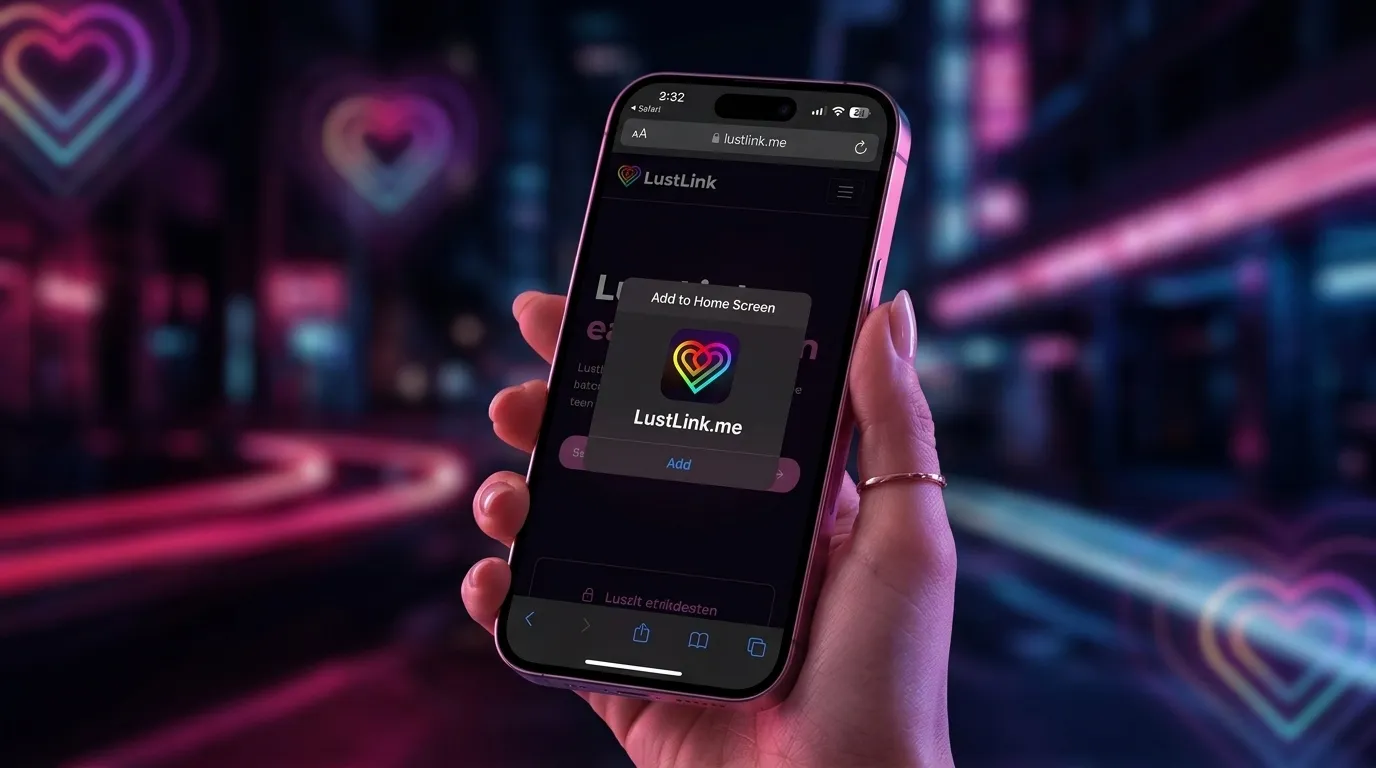
Why Isn’t There a Simple “Install” Button?
Many iPhone users wonder why Android devices often show a convenient banner with an “Install” button for web apps (PWAs), while Apple blocks this automatic prompt on iPhone and iPad.
Due to platform security and corporate guidelines, iOS Safari does not permit automated installation prompts. But don’t worry: you can still add LustLink as a full-fledged app to your home screen in just a few seconds!
How It Works (Step-by-Step)
Open Safari
Make sure you open LustLink in the Safari browser. Other browsers like Chrome or Firefox on iOS often do not support this feature properly.
Open the Share Menu
Tap the Share icon at the bottom of the Safari toolbar (the square with an arrow pointing upward).
Select the Option
Scroll down slightly in the share sheet and select the option "Add to Home Screen".
Confirm
Confirm by tapping "Add" in the top right corner. Done! The app is now ready on your home screen.
The Added Value of Installing the App
Why take this small step? Once LustLink is placed on your home screen, it functions just like a native app:
- Fullscreen Mode: No intrusive browser controls or URL bars.
- Faster Access: Just a single tap on your home screen.
- Enhanced Privacy: The app runs detached from your normal Safari history in dedicated “standalone mode”.
Use LustLink in app view to compare your desires with your partner discreetly and without distractions.
Helpful article?
Loading ratings...